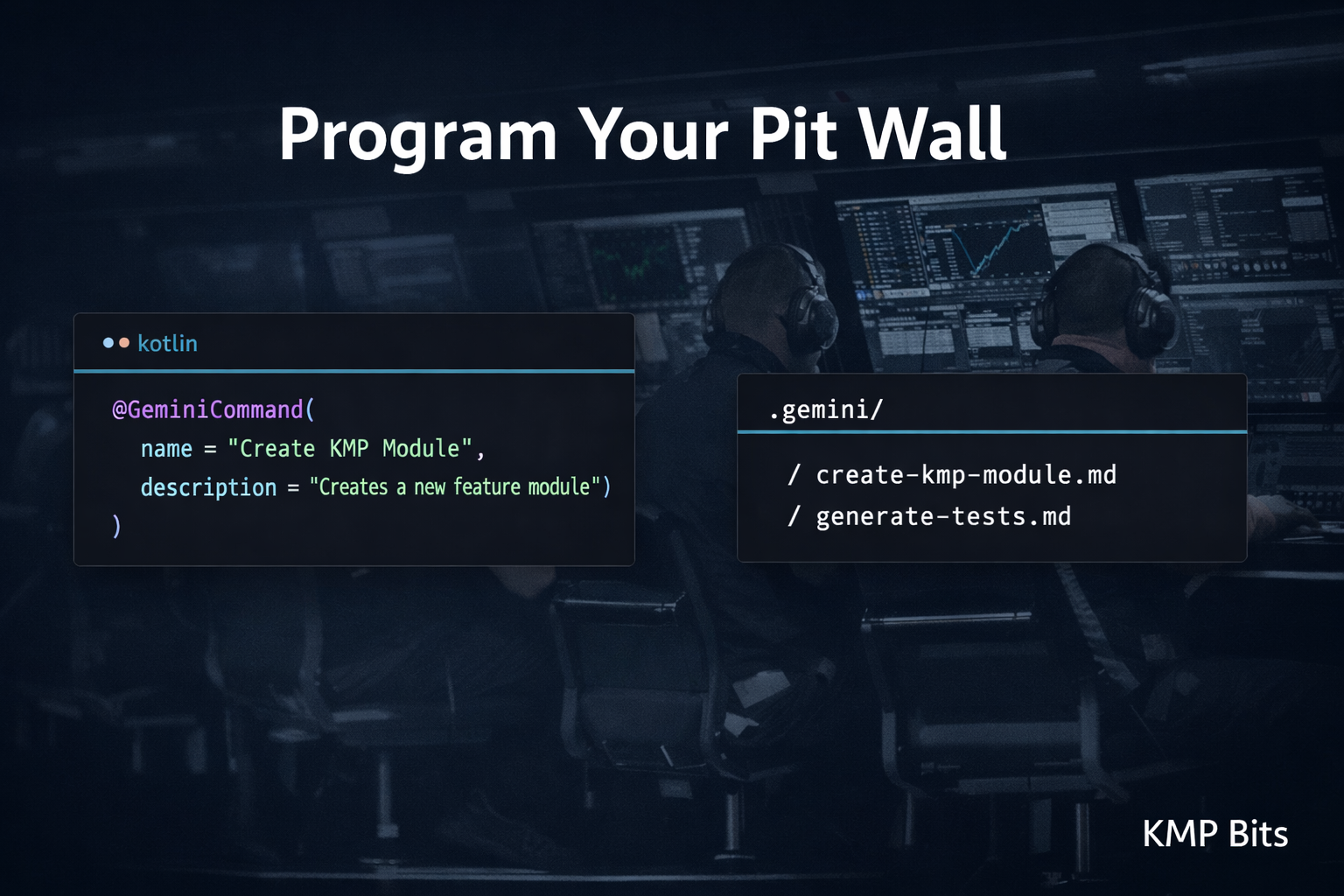
In F1, the pit wall crew doesn’t get a briefing before every stop. They’ve trained the same sequence hundreds of times, for their specific car, with their specific setup. When the driver comes in, nobody is googling “how to change a tyre.” The whole operation runs on muscle memory and context that was built long before race day.
I kept thinking about that when I was using Gemini inside Android Studio. Because for a long time it felt like hiring a freelance mechanic who’d never seen my car before. Capable, sure. But I had to explain everything from scratch each time: the project structure, the architecture, the naming conventions. The AI would give me something plausible and I’d spend ten minutes adapting it to what I actually had.
Custom commands changed that. Not by making Gemini smarter, but by giving it upfront context. And of all the commands I’ve set up, the one that creates KMP feature modules is the one I reach for every day.
The old way
There’s no “New Feature Module” wizard in Android Studio. Not for KMP. What I used to do: create a new KMP project from the template, open it, import only the shared folder into my main project, resolve the dependency conflicts, rename the module, update settings.gradle.kts, and repeat for each layer: domain, data, presentation.
Four rounds of the same ritual per feature. Fifteen minutes if nothing went wrong. It almost never went wrong cleanly.
The real cost wasn’t the time. It was the interruption. You’re thinking through an architecture decision and suddenly you’re untangling Gradle imports and renaming packages by hand. By the time you’re done, you’ve lost the thread.
What custom commands are
Android Studio’s Gemini integration lets you define custom commands: markdown files that give the AI structured instructions and project context before it does anything. They live inside a .gemini/ folder at the root of your project. Each file becomes a named command you call from the Gemini panel with a /.
I have three set up. One generates unit tests for a selected class. One scaffolds the full data layer trio: DTO, Entity, and Mapper. The third creates KMP feature modules. The first two are time-savers. The third one is the reason I started thinking about what else I’d been doing by hand for no reason.
The command file
The full command is below, with my package replaced by com.example. Read through it once before I explain the decisions. It’s short enough to follow without commentary, and the structure will make more sense if you see it whole first.
// .gemini/create-kmp-module.md

name: Create KMP Module
description: "Creates a new feature module or adds a layer (domain, data, presentation) to an existing feature."
---

# Create KMP Module

This command automates the creation of a new KMP module within a feature, ensuring consistency with the project's architecture.

## Parameters
- **Feature Name**: (e.g., "add-book", "profile")
- **Layer**: (domain, data, or presentation)

## Instructions

1.  **Determine Module Path**:
    - The module path will be `feature/<feature-name>/<layer>`.
    - Example: `feature/add-book/domain`.

2.  **Check for Existence**:
    - Check if the directory `feature/<feature-name>/<layer>` already exists.
    - If it exists, notify the user and stop.

3.  **Create Directory Structure**:
    - Create the folder: `feature/<feature-name>/<layer>/src/commonMain/kotlin/com/example/feature/<feature-name_sanitized>/<layer>`.
    - Sanitization: Replace hyphens with underscores for package names (e.g., `add-book` → `add_book`).
    - If the layer is **data** or **presentation**, also create `src/androidMain` and `src/commonTest`.

4.  **Create build.gradle.kts**:
    - Path: `feature/<feature-name>/<layer>/build.gradle.kts`.
    - Content based on the layer:
        - **Domain**:
          ```kotlin
          plugins {
              kotlin("multiplatform")
          }

          kotlin {
              androidTarget()
              iosX64()
              iosArm64()
              iosSimulatorArm64()

              sourceSets {
                  commonMain.dependencies {
                      // domain dependencies here
                  }
              }
          }
          ```
        - **Data**:
          ```kotlin
          plugins {
              kotlin("multiplatform")
              id("com.android.library")
          }

          kotlin {
              androidTarget()
              iosX64()
              iosArm64()
              iosSimulatorArm64()

              sourceSets {
                  commonMain.dependencies {
                      // data dependencies here
                  }
                  androidMain.dependencies {
                      // android-specific dependencies here
                  }
              }
          }
          ```
        - **Presentation**:
          ```kotlin
          plugins {
              kotlin("multiplatform")
              id("com.android.library")
              id("org.jetbrains.compose")
          }

          kotlin {
              androidTarget()
              iosX64()
              iosArm64()
              iosSimulatorArm64()

              sourceSets {
                  commonMain.dependencies {
                      implementation(compose.runtime)
                      implementation(compose.foundation)
                      implementation(compose.material3)
                  }
              }
          }
          ```

5.  **Register in settings.gradle.kts**:
    - Add `include(":feature:<feature-name>:<layer>")` to the root `settings.gradle.kts`.
    - Keep alphabetical or logical grouping near other feature modules.

6.  **Base Classes**:
    - **Domain**: Create a placeholder `README.md` and a sample `UseCase`.
    - **Presentation**: Create the `State`, `Events`, and `ViewModel` boilerplate as defined in `AGENTS.md`.
    - **Data**: Create a placeholder repository implementation and its DI module.

7.  **Gradle Sync**:
    - Remind the user to run a Gradle sync after the files are created.
Three decisions in this file are worth explaining.
Step 2 is not optional. You don’t want Gemini silently overwriting a module that already exists. The existence check protects you from that, and it also forces you to be deliberate. If the module’s already there, something is off with your plan and you want to know before anything gets created.
Step 3 handles the package name sanitization. Package names can’t have hyphens, but folder names can. Feature names like add-book are valid at the folder level, and the translation to add_book for the package path happens without you thinking about it. I used to do this manually and get it wrong at least once per feature.
Step 6 is where consistency actually comes from. The reference to AGENTS.md is a file I keep at the root of the project that describes my architectural conventions: what a State class looks like, how Events are named, what goes in a ViewModel and what doesn’t. Gemini reads it as part of the command context. Every module comes out with the same shape, because the shape is written down once and referenced from here. Six months in, you still recognise every feature folder at a glance, because they were all built from the same briefing.
A quick note on build-logic: The
build.gradle.ktsabove uses standard KMP Gradle setup so it works in any project. In my own setup, I replaced all of that with convention plugins from abuild-logicmodule: each layer gets a singleid("com.example.domain")line and the rest is handled centrally. It keeps module files clean and makes updating dependencies a one-place change. If you want me to write a dedicated article on how to set that up for KMP, let me know in the comments.
What happens when you run it
You open the Gemini panel, call the command, and tell it what you need:
Create KMP module: feature name “add-book”, layer “domain”
Gemini reads the instruction file, checks the directory tree, creates the folder structure, writes build.gradle.kts with the right configuration for that layer, registers the module in settings.gradle.kts, creates the placeholder files, and tells you to sync Gradle.
The first time it ran cleanly I kept waiting for something to be wrong. Nothing was.
For a full feature (domain, data, presentation), three commands instead of forty-five minutes of manual setup. The modules come out consistent, the packages are named correctly, and each layer has exactly what it needs to compile.
Why context is the whole point
Without the instruction file, you’d ask “create a KMP module for add-book domain” and get back something plausible but wrong, or politely confused. Gemini doesn’t know your package convention. It doesn’t know you want State and Events scaffolded from a specific pattern.
The instruction file is the pit wall briefing. It tells the AI what your car looks like, what setup you’re running, and exactly what the stop needs to accomplish. Without it, every request starts cold.
That’s the shift: stop treating the AI as a search engine and start treating it as a crew member who needs onboarding. You do that work once, in the .gemini/ folder. After that, the crew knows the car.
Setting this up
Create a .gemini/ folder at the root of your project. Inside it, add one markdown file per command. The structure is always the same:
// .gemini/create-kmp-module.md

name: Create KMP Module
description: "Creates a new feature module or adds a layer to an existing feature."
---

# Instructions
...
The name is what appears in the panel. The description is what Gemini uses to decide when to suggest the command. Everything after the --- is the instruction body. Once the files are in place, open the Gemini panel and type /. Your commands appear in the list immediately. No IDE restart, no configuration step.
Start with whatever you do most often. The pattern you repeat three times a week is a better first command than something you do once a month. For me it was module creation and the gap was obvious from the first use. The others came after, once I understood what the format could actually carry.
Wrapping up
Custom Gemini commands aren’t clever tricks. They’re documentation that the AI can actually use. Gemini was always capable of creating KMP modules. It just had no idea what your project looked like. The instruction file closes that gap.
The fifteen-minute manual ritual is gone. What replaced it is a command and a Gradle sync. Every module comes out the same, the architecture stays consistent, and I can stay focused on the problem I actually sat down to solve.
The principle isn’t Gemini-specific either. Claude Code reads a CLAUDE.md at the root of your project the same way. Cursor has .cursor/rules/. GitHub Copilot has .github/copilot-instructions.md. The tool changes, the idea doesn’t: write down what your project looks like once, and stop explaining it from scratch every time.
The crew doesn’t need a briefing on race day. You wrote it once, in a folder at the root of the project. 🏁
The KMP Bits app is available on App Store and Google Play — built entirely with KMP.
Comments
Loading comments...